Cymetryc Installer

For Windows 10 or 11

Please click the button below to download the install file and double-click to start the install process.

 Admin rights are needed to install, please contact your local IT staff if you do not have Admin priviledges.


(  UK Customers Only)


Download Windows Installer

We have recently updated the digital code signing certificate used for our installer.


As a result, Google Chrome or Microsoft Edge may show a warning when the installer is downloaded. This can occur while browsers and security services build trust reputation for the updated certificate.


If your organisation’s security policy allows you to proceed, you can accept the download by opening the download warning and selecting the relevant option, such as Keep, Keep anyway, or Show more, then confirming that you want to keep the file.


Please only proceed if the installer was downloaded from the official link provided by us, on this page.


If the download is blocked by your company’s browser, security software, or endpoint protection, please contact your IT team and ask them to review and approve the download in line with your organisation’s security procedures.


Please contact us at support@cymetryc.com if you or your IT team need confirmation that the installer is genuine.

INSTALLATION INSTRUCTIONS.

After clicking download, you should see a file downloaded in your browser or to your C:\Downloads folder.
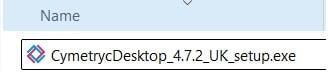


Double click the file to begin the install.


Windows Defender or other security software may ask you to approve the file.  Click More Info then Run Anyway.

This will launch the installer.  Click NEXT and follow the prompts to complete the installation.
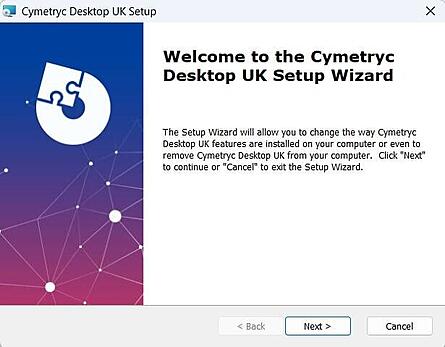

Image of UK installation wizard


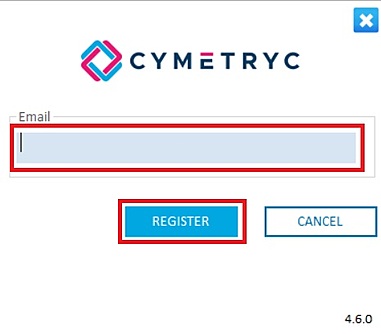
Double click the new Cymetryc icon on your desktop.  First time users, click NEW USER.     Enter your email address and click REGISTER.
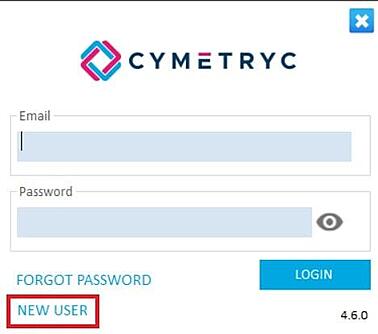

New User screen            Completing User Registration

You will receive an email with a temporary password.  Login with the temporary password, you will be asked to reset to your password.


Next time you login, use your email and new password.


If you have any problems, please contact support@cymetryc.com

UNINSTALL INSTRUCTIONS

To start the uninstall process, you must first open Add & Remove Programs in Settings on your pc.

Press the windows key on your keyboard

In the search bar enter  and select the option that appears.

Select Cymetryc Desktop, click the elipses ... and click uninstall from the menu
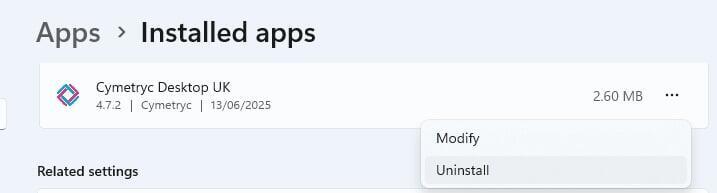
Image of uninstall in Windows Settings, Apps, Installed Apps


If the Cymetryc icon is still on your desktop, please delete it.


Lastly, clear out your install folder. Open File Explorer and locate the following folder: C:\Program Files (x86)\CymetrycUK & delete this folder.



WHITELISTING INFORMATION

The following URLs need to be accessible and should be set to bypass Proxy servers.  Port 443

      https://corpapi-ats.clinisysgroup.com/api/*
      https://contentapi-ats.clinisysgroup.com/api/*
      https://cymetrycapi-ats.clinisysgroup.com/api/* 

In addition, the following URLs need to be accessible for direct access.
           Access to result viewing at https://ats.clinisysgroup.com/