Cymetryc Release Notes: March 2025
Updates included within the March Cymetryc release
- Add one screenshot to multiple test cases
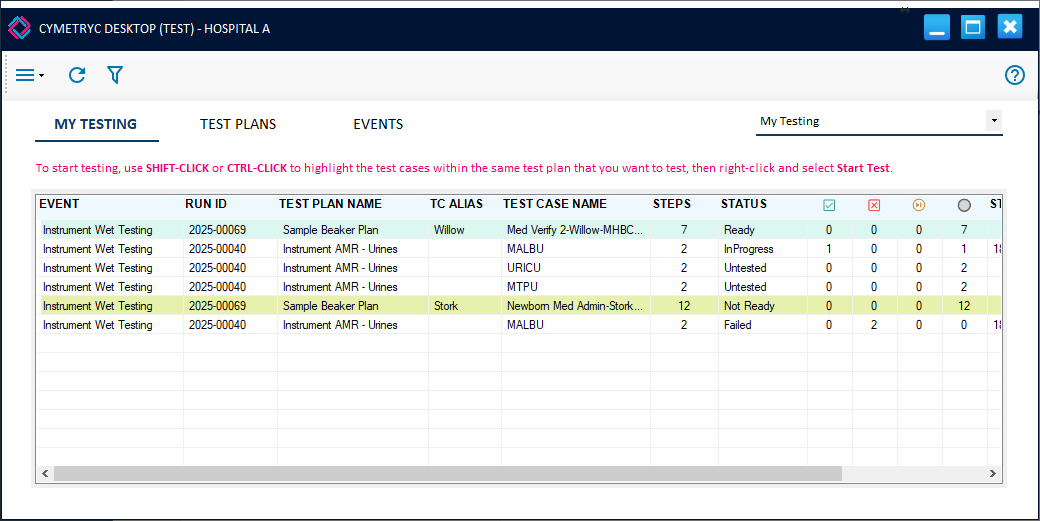
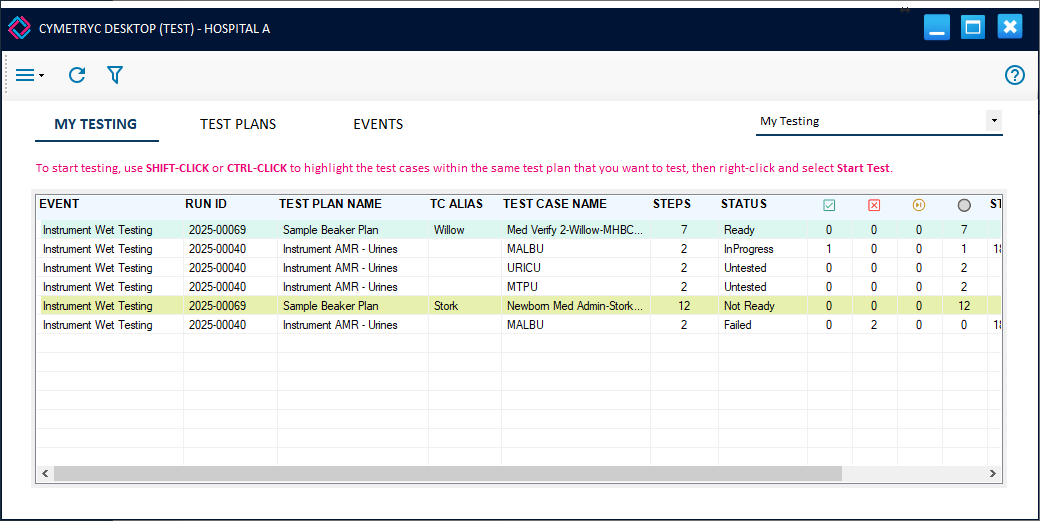
- Baton ‘Not Ready’ updates within Desktop
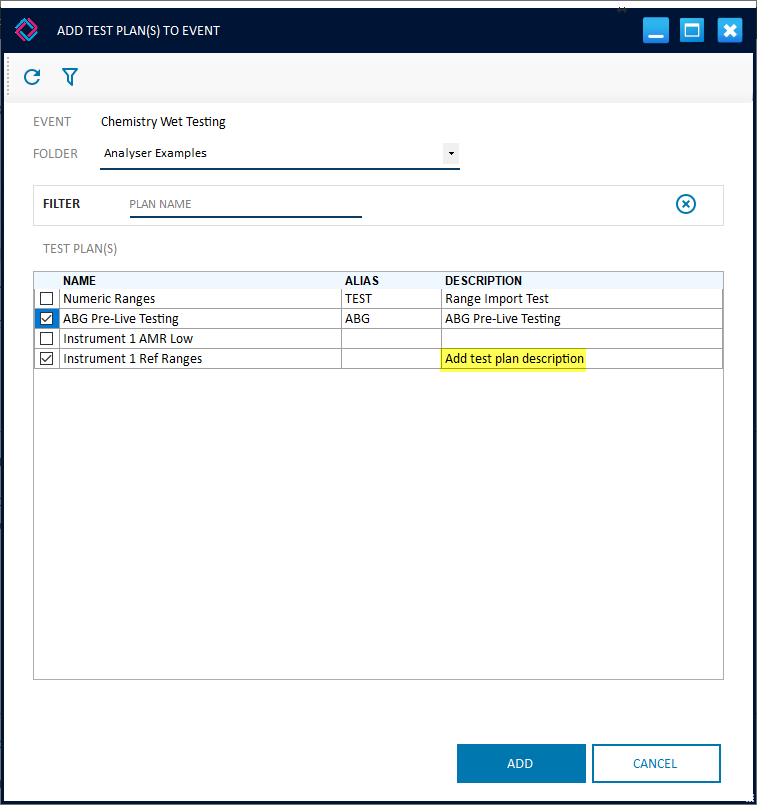
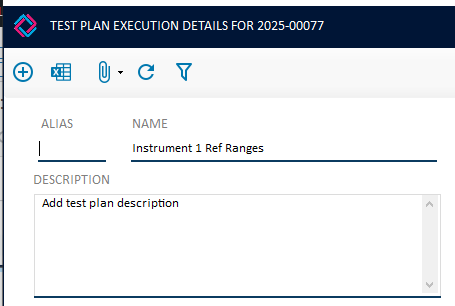
- Test Plan description added to test plan within event
- Update to next untested step logic
- Restriction of event complete by user type
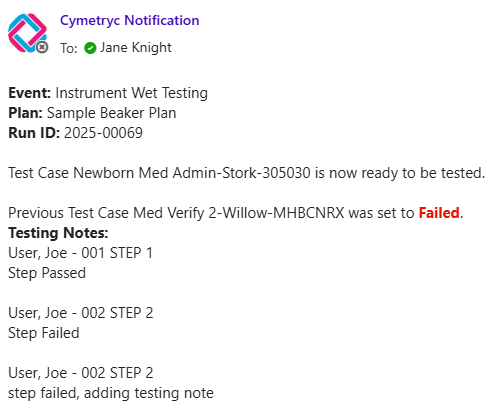
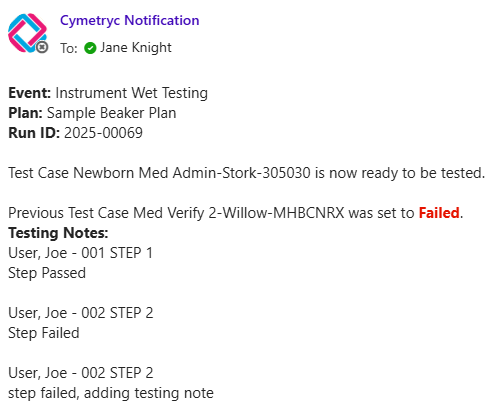
- Updates to email notifications
- Addition of test case status to ‘Opened’ in final reports
The most requested feature has been added
Add one screenshot to multiple test cases!
Previously, when a tester needed to add the same screenshot to multiple test cases, they clicked through each test case and either re-grabbed the screenshot or pasted it from the clipboard. We understand that this is tedious, especially for instrument testing when capturing a large set of data which needs to be applied to all applicable analyte test cases.
So to solve that problem, we’ve added a new option to check the boxes of the test cases within the same test plan to apply the screenshot to the same step – automatically
To see the new workflow in action, click here!
The tester will now have the option to select other test cases to apply the image to.
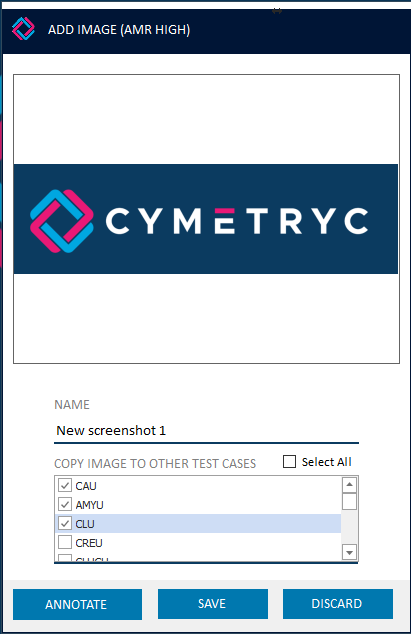
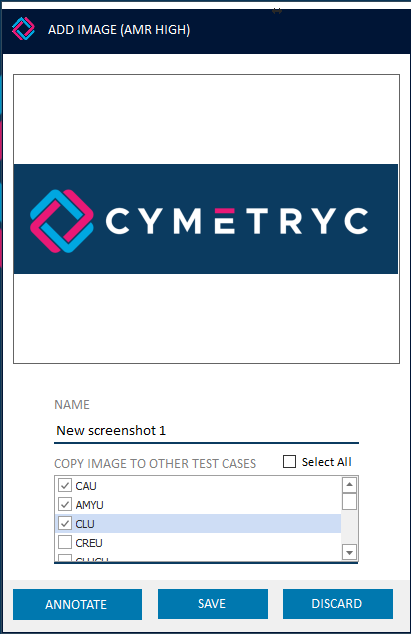
- Grab the screenshot you wish to copy – make sure it’s within the same step in the other test cases!
- Select the test cases from the list – all test cases within the test plan are available to select
- Click Save, and wait for the process to complete – a spinner will display until it’s finished
Note: The status of the step will not change (it will not be updated to in progress, pass, or fail)
Update to next untested step logic
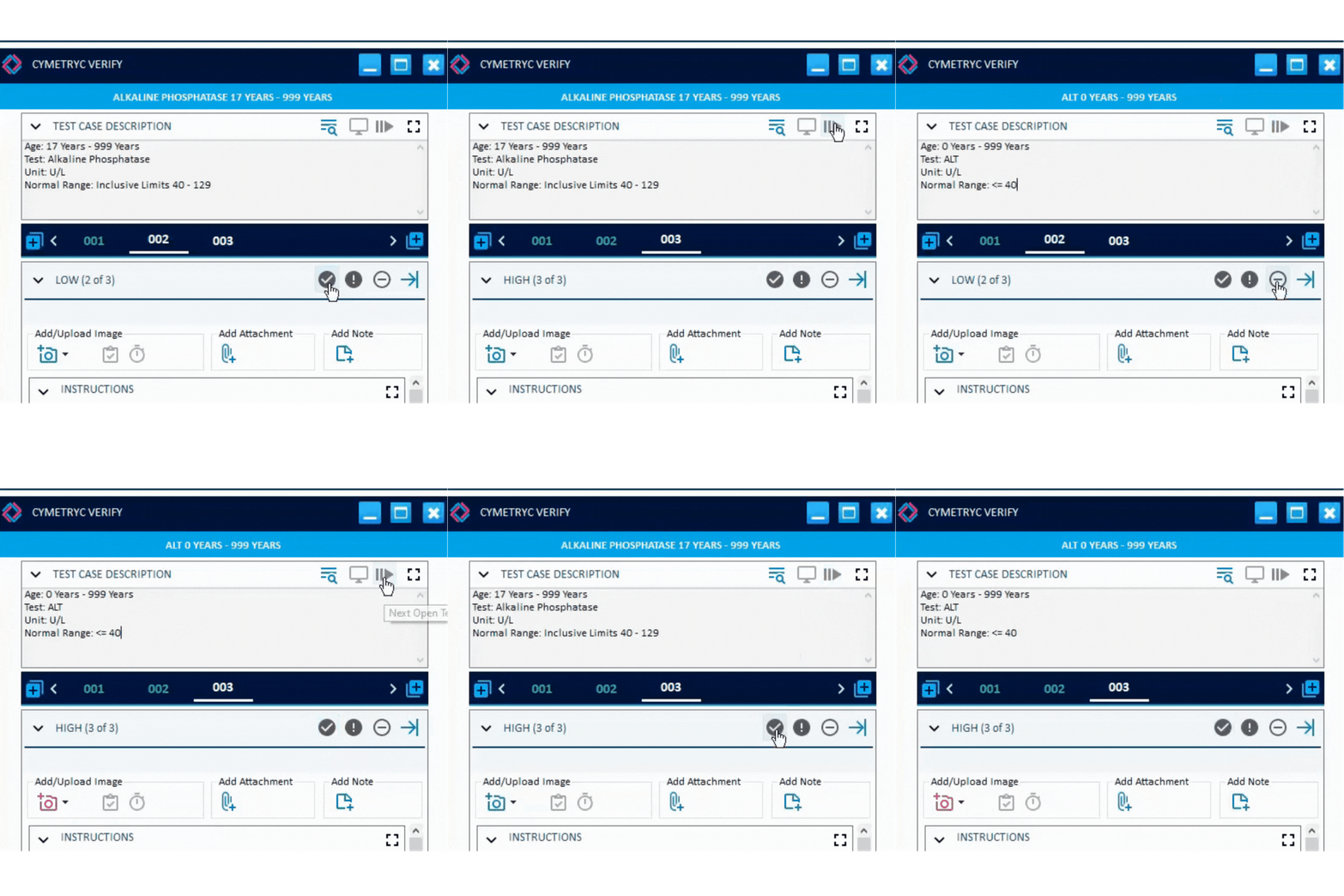
Previously, any time a tester opened a test case within the Testing Guide, they would be brought to Step 1 regardless of testing progress. Now, the tester will be taken to the next untested step. This applies to
- Right-click, Start Test of a Test Plan or Test Case
- When multiple test cases are selected to test and a test case has been completed, the next test case will display the first untested step
- When using the ‘Next Open Test Case’ button, the user will be brought to the first untested step of the next open test case of those selected for testing
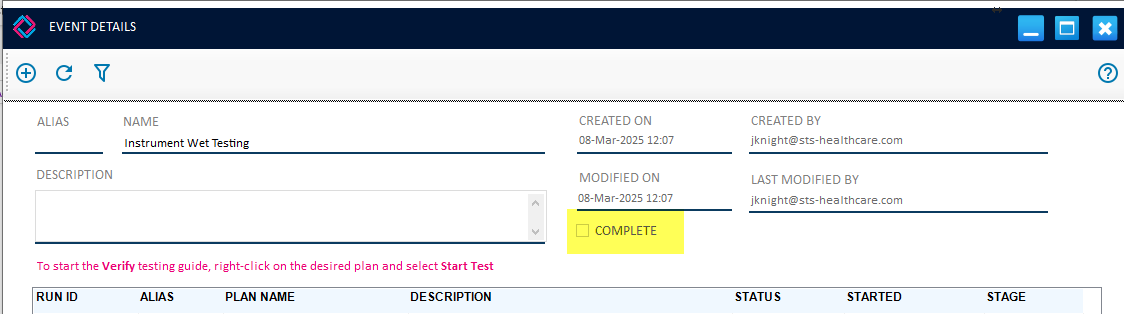
A user must have admin or coordinator user access to enable the Complete checkbox within the Event Details within Cymetryc Desktop. Previously, a Tester or Tester-Approver could set an Event to Complete.
All notifications were previously sent from notify@sts-healthcare.com and are now sent from notify@cymetryc.com
All password reset emails will now include the date and time the password was requested. Since there is a slight delay at times of when the email is received by the user with the temporary password, and they may click forgot password multiple times. This gives the user more information to know which email contains the most current temporary password.


Please reach out to support@cymetryc.com if you are interested in more information about these updates or want to strategize how to get the most out of Cymetryc.